🥞PancakeJS

MCP Apps Architecture

Understanding the architecture behind chat apps is essential for building robust, production-ready applications. This guide explains how the pieces fit together, from MCP servers to widget rendering.

Core Components

Every chat app, whether targeting ChatGPT Apps or MCP Apps, consists of two fundamental components:

1. MCP Server

The MCP server is your backend. It exposes tools (functions the AI can call) and resources (data and UI assets the AI can retrieve). When a user asks for something your app can handle, the AI invokes your tools through the MCP protocol.

import { createUniversalServerApp } from '@pancakeapps/server';

const app = createUniversalServerApp({
  name: 'flight-booking',
  version: '1.0.0',
});

// Define a tool the AI can invoke
app.tool({
  name: 'search_flights',
  description: 'Search for flights between two cities',
  inputSchema: z.object({
    origin: z.string(),
    destination: z.string(),
    date: z.string(),
  }),
}, async (input) => {
  const flights = await flightAPI.search(input);
  return { flights };
});

2. Web Widget

Widgets are the visual interface rendered inside the AI host. They're standard web components (React, in PancakeJS) that run in a sandboxed iframe within ChatGPT, Claude, or other hosts.

function FlightSearchWidget() {
  const { data } = useToolInvocation();
  
  return (
    <div className="flight-results">
      {data.flights.map(flight => (
        <FlightCard key={flight.id} flight={flight} />
      ))}
    </div>
  );
}

The Request Flow

Here's what happens when a user interacts with your app:

User Expresses Intent

The user types something like "Find me flights to Tokyo next week" in ChatGPT or Claude.

AI Selects Your Tool

The AI analyzes the request and determines your search_flights tool is the right one to call. It extracts parameters from the natural language query.

MCP Server Executes

The AI sends a tool call to your MCP server with the extracted parameters:

{
  "method": "tools/call",
  "params": {
    "name": "search_flights",
    "arguments": {
      "origin": "New York",
      "destination": "Tokyo",
      "date": "2025-01-15"
    }
  }
}

Tool Returns Widget Reference

Your tool handler returns structured data along with a reference to the UI resource:

return renderWidget('flight-search', {
  data: { flights: searchResults },
});

Under the hood, this creates a response with _meta referencing your widget resource.

Host Retrieves Widget

The AI host requests the widget resource from your MCP server:

{
  "method": "resources/read",
  "params": {
    "uri": "ui://widget/flight-search.html"
  }
}

Widget Renders

The host loads your widget script into a sandboxed iframe and displays it inline in the conversation. The widget receives the data from your tool response.

Resource Declaration

Widgets must be pre-declared as MCP resources. This allows the host to:

  • Verify widget safety before installation
  • Cache assets for faster loading
  • Apply security policies consistently

PancakeJS handles resource declaration automatically:

app.widget({
  name: 'flight-search',
  description: 'Display flight search results',
  inputSchema: flightSchema,
  ui: {
    entry: 'src/widgets/flight-search.tsx',
    csp: {
      connectDomains: ['api.flights.com'],
      imgDomains: ['images.airline.com'],
    },
  },
}, handler);

In raw MCP, you declare resources explicitly:

server.registerResource(
  'flight-search-widget',
  'ui://widget/flight-search.html',
  {},
  async () => ({
    contents: [{
      uri: 'ui://widget/flight-search.html',
      mimeType: 'text/html+skybridge',
      text: `<script type="module">${widgetScript}</script>`,
    }],
  })
);

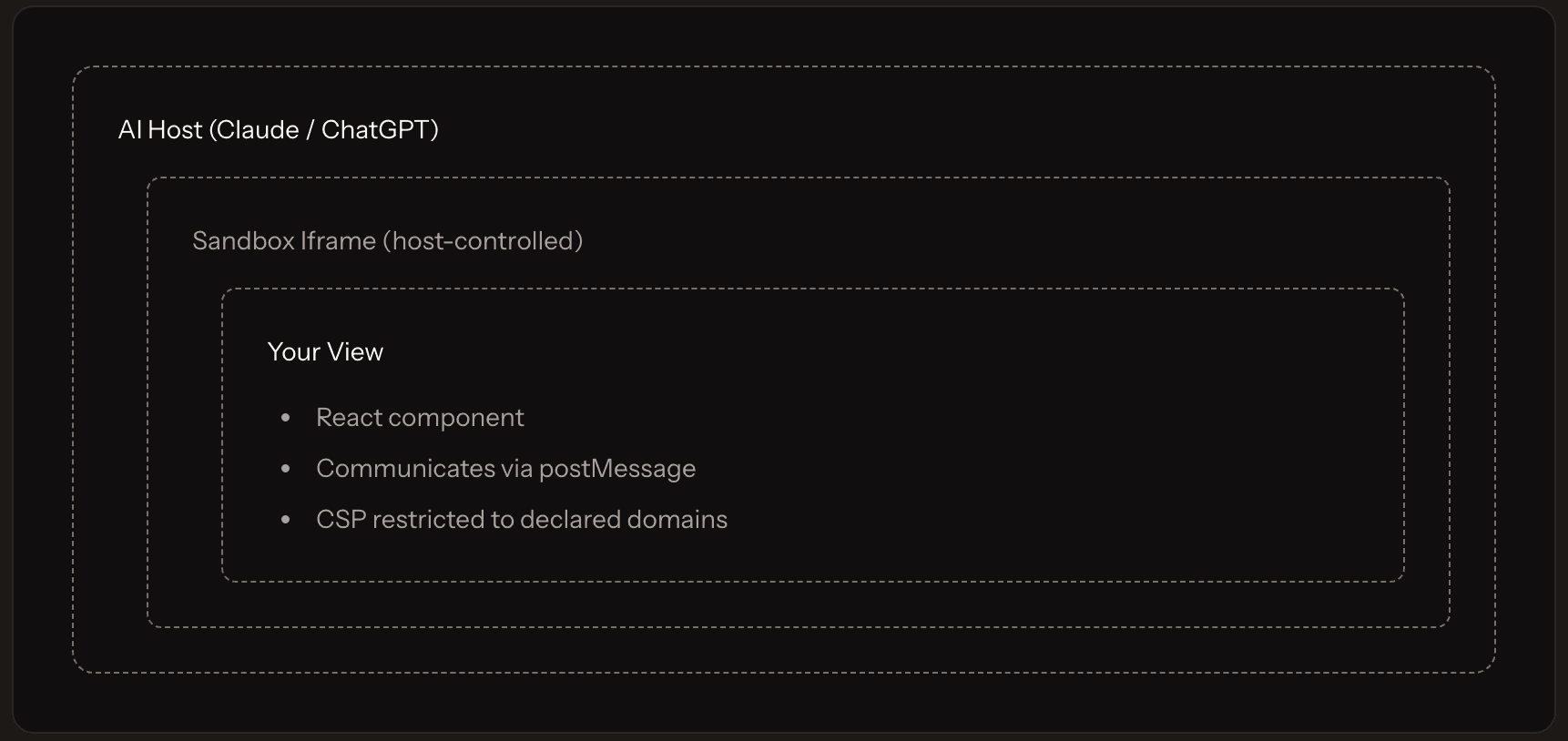
The Double Iframe Architecture

For security, hosts render widgets inside a double iframe structure:

┌─────────────────────────────────────────────────────────────────┐
│  AI Host (ChatGPT / Claude)                                      │
│  ┌───────────────────────────────────────────────────────────┐  │
│  │  Sandbox Iframe (host-controlled)                          │  │
│  │  ┌─────────────────────────────────────────────────────┐  │  │
│  │  │  App Iframe (your widget)                            │  │  │
│  │  │                                                      │  │  │
│  │  │  • Loads your compiled React component               │  │  │
│  │  │  • Communicates via postMessage                      │  │  │
│  │  │  • CSP restricted to declared domains                │  │  │
│  │  │                                                      │  │  │
│  │  └─────────────────────────────────────────────────────┘  │  │
│  └───────────────────────────────────────────────────────────┘  │
└─────────────────────────────────────────────────────────────────┘

This architecture provides:

Security LayerPurpose
Outer sandboxIsolates your code from the host application
Inner iframeContains your actual widget code
CSP policiesRestricts network access to declared domains
postMessageControlled communication channel

MCP Apps vs ChatGPT Apps

While both platforms share similar architecture, there are key differences:

PancakeJS abstracts these differences, but understanding them helps when debugging or optimizing.

AspectMCP AppsChatGPT Apps
ScopeCross-platform standardChatGPT-specific
CommunicationMCP JSON-RPC protocolwindow.openai API
State persistenceVaries by hostBuilt-in session storage
UI kitNo requirementOpenAI design system encouraged
AuthOAuth 2.1 standardOpenAI OAuth integration

Communication Protocol

MCP Apps use the MCP JSON-RPC protocol for all communication:

// Send message to host
postMessage({
  jsonrpc: '2.0',
  id: 1,
  method: 'ui/message',
  params: {
    role: 'user',
    content: { type: 'text', text: 'Show me more options' }
  }
});

// Call a tool
postMessage({
  jsonrpc: '2.0',
  id: 2,
  method: 'tools/call',
  params: {
    name: 'get_more_flights',
    arguments: { page: 2 }
  }
});

ChatGPT Apps use the window.openai global API:

// Send message to host
window.openai.sendFollowUpMessage({
  prompt: 'Show me more options'
});

// Call a tool
window.openai.callTool('get_more_flights', { page: 2 });

// Access tool data
const flights = window.openai.toolOutput;

Why PancakeJS Abstracts This

Without abstraction, you'd need to write platform-specific code:

// ❌ Without PancakeJS: duplicated logic
if (typeof window.openai !== 'undefined') {
  // ChatGPT Apps path
  const data = window.openai.toolOutput;
  window.openai.callTool('book', { id: flightId });
} else {
  // MCP Apps path
  const data = await waitForMcpNotification('ui/notifications/tool-result');
  postMessage({ jsonrpc: '2.0', method: 'tools/call', ... });
}
// ✅ With PancakeJS: write once
const { data } = useToolInvocation();
const book = useCallTool('book');
await book({ id: flightId });

Widget Lifecycle

Understanding the widget lifecycle helps you build responsive, well-behaved apps:

┌─────────────────────────────────────────────────────────────────┐
│                      Widget Lifecycle                            │
├─────────────────────────────────────────────────────────────────┤
│                                                                  │
│  1. INITIALIZE                                                   │
│     └─→ Host creates iframe                                      │
│     └─→ Widget script loads                                      │
│     └─→ UniversalAppProvider establishes connection              │
│                                                                  │
│  2. HYDRATE                                                      │
│     └─→ Widget receives tool input/output data                   │
│     └─→ Initial render with server data                          │
│                                                                  │
│  3. INTERACTIVE                                                  │
│     └─→ User interacts with widget                               │
│     └─→ Widget calls tools, updates state                        │
│     └─→ Widget may send messages back to AI                      │
│                                                                  │
│  4. PERSIST (optional)                                           │
│     └─→ Widget state saved for future renders                    │
│                                                                  │
│  5. TEARDOWN                                                     │
│     └─→ Host notifies widget of destruction                      │
│     └─→ Cleanup handlers run                                     │
│     └─→ Iframe removed                                           │
│                                                                  │
└─────────────────────────────────────────────────────────────────┘

Always wrap your widget with UniversalAppProvider. It handles connection setup, data hydration, and lifecycle management automatically.

Security Considerations

Building for chat apps requires careful attention to security:

Content Security Policy (CSP)

Declare all external domains your widget needs:

app.widget({
  // ...
  ui: {
    entry: 'src/widgets/flights.tsx',
    csp: {
      connectDomains: ['api.yourservice.com'], // API calls
      imgDomains: ['cdn.yourservice.com'],     // Images
      fontDomains: ['fonts.googleapis.com'],   // Fonts
    },
  },
});

Domain Verification

Hosts require you to verify ownership of your MCP server domain. This prevents impersonation and ensures users can trust installed apps.

OAuth for Authentication

If your app requires user authentication, use OAuth 2.1. Hosts handle the OAuth flow, providing your widget with tokens securely.

Next Steps

Now that you understand the architecture, explore how widgets communicate with hosts:

On this page