Host-Guest Communication
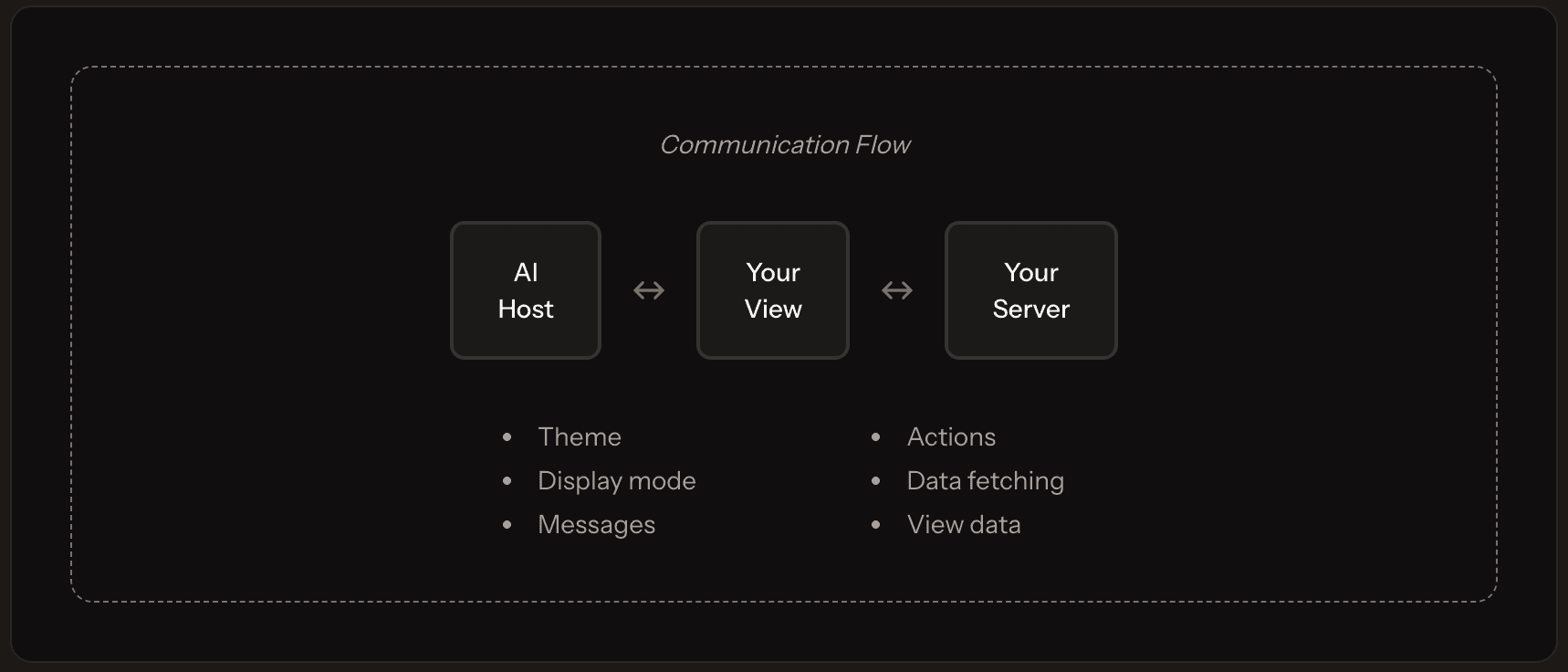
When your view renders inside an AI host like Claude or ChatGPT, it exists in a sandboxed iframe. Communication between your view (the "guest") and the AI host flows through a structured protocol. Understanding this helps you build responsive, interactive apps.
Communication Model
Your view can:
- Receive data from tool invocation
- Call actions on your server
- Fetch data from your server
- Message the AI assistant
- Navigate to other views
- Respond to host context (theme, display mode)
Receiving Data
When the AI invokes your view, the handler runs and passes data to your component:
import { useViewParams } from '@pancake-apps/web';

function ProductView() {
  const { inputs, data } = useViewParams<
    { productId: string },
    { product: Product; relatedProducts: Product[] }
  >();

  // inputs: { productId: 'abc123' } - what the AI passed
  // data: { product: {...}, relatedProducts: [...] } - from handler

  return (
    <div>
      <h1>{data.product.name}</h1>
      <p>{data.product.description}</p>
    </div>
  );
}
Calling Actions
Views can invoke actions on your server:
import { useAction } from '@pancake-apps/web';

function OrderCard({ order }) {
  const { dispatch } = useAction();
  const [cancelling, setCancelling] = useState(false);

  const handleCancel = async () => {
    setCancelling(true);
    try {
      const result = await dispatch<{ success: boolean }>('cancelOrder', {
        orderId: order.id,
      });
      if (result.success) {
        // Show success message
      }
    } finally {
      setCancelling(false);
    }
  };

  return (
    <div>
      <h3>Order #{order.id}</h3>
      <button onClick={handleCancel} disabled={cancelling}>
        {cancelling ? 'Cancelling...' : 'Cancel Order'}
      </button>
    </div>
  );
}
Actions are for write operations (create, update, delete). For reads, use data endpoints.
Fetching Data
Views can fetch data from your server:
import { useData } from '@pancake-apps/web';

function ProductSearch() {
  const { getData } = useData();
  const [products, setProducts] = useState<Product[]>([]);
  const [loading, setLoading] = useState(false);

  const search = async (query: string) => {
    setLoading(true);
    try {
      const results = await getData<Product[]>('searchProducts', {
        query,
        limit: 20,
      });
      setProducts(results);
    } finally {
      setLoading(false);
    }
  };

  return (
    <div>
      <input
        onChange={(e) => search(e.target.value)}
        placeholder="Search products..."
      />
      {loading ? (
        <div>Searching...</div>
      ) : (
        <ProductList products={products} />
      )}
    </div>
  );
}
Messaging the AI
Views can send messages back to the AI:
import { useNavigation } from '@pancake-apps/web';

function TripSummary({ trip }) {
  const { say } = useNavigation();

  const askForHotels = () => {
    say(`Find hotels near ${trip.destination} for ${trip.dates}`);
  };

  const askForActivities = () => {
    say(`What activities are available in ${trip.destination}?`);
  };

  return (
    <div>
      <h2>Trip to {trip.destination}</h2>
      <FlightDetails flight={trip.flight} />

      <div>
        <p>What next?</p>
        <button onClick={askForHotels}>Find Hotels</button>
        <button onClick={askForActivities}>Find Activities</button>
      </div>
    </div>
  );
}
This creates a natural flow where view interactions continue the conversation.
Navigating Between Views
Views can navigate to other views:
import { useNavigation } from '@pancake-apps/web';

function ProductCard({ product }) {
  const { navigate } = useNavigation();

  return (
    <div onClick={() => navigate('product-detail', { productId: product.id })}>
      <img src={product.image} alt={product.name} />
      <h3>{product.name}</h3>
      <p>${product.price}</p>
    </div>
  );
}
Responding to Host Context
Views should adapt to the host's context:
import { useTheme, useDisplayMode, useHost } from '@pancake-apps/web';

function AdaptiveView() {
  const theme = useTheme();
  const displayMode = useDisplayMode();
  const host = useHost();

  return (
    <div
      style={{
        background: theme === 'dark' ? '#1a1a1a' : '#ffffff',
        color: theme === 'dark' ? '#ffffff' : '#000000',
        padding: displayMode === 'embedded' ? '1rem' : '2rem',
      }}
    >
      {/* content */}
    </div>
  );
}
Persisting State
View state persists across re-renders:
import { useViewState } from '@pancake-apps/web';

function FilterableList() {
  // State persists even if the view unmounts and remounts
  const [filter, setFilter] = useViewState('');
  const [sortBy, setSortBy] = useViewState('name');

  return (
    <div>
      <input
        value={filter}
        onChange={(e) => setFilter(e.target.value)}
        placeholder="Filter..."
      />
      <select value={sortBy} onChange={(e) => setSortBy(e.target.value)}>
        <option value="name">Name</option>
        <option value="price">Price</option>
        <option value="date">Date</option>
      </select>
      {/* list */}
    </div>
  );
}
Vanilla JS API
For HTML views without React, use the global window.pancake object:
// Wait for pancake
const pancake = await new Promise((resolve) => {
  if (window.pancake) return resolve(window.pancake);
  const check = setInterval(() => {
    if (window.pancake) {
      clearInterval(check);
      resolve(window.pancake);
    }
  }, 50);
});

// Get view data
const data = pancake.adaptor.getToolOutput();
const inputs = pancake.adaptor.getToolInput();

// Get host context
const theme = pancake.hostContext.theme;

// Call action
const result = await pancake.unified.action('cancelOrder', { orderId: '123' });

// Fetch data
const products = await pancake.unified.data('searchProducts', { query: 'test' });

// Message AI
pancake.unified.say('Show me more options');

// Navigate
pancake.unified.navigate('other-view', { param: 'value' });

// Persist state
pancake.setViewState({ filter: 'active', page: 2 });
const state = pancake.getViewState();
Best Practices
Handle Loading States
const [loading, setLoading] = useState(false);

const handleAction = async () => {
  setLoading(true);
  try {
    await dispatch('action', params);
  } finally {
    setLoading(false);
  }
};
Handle Errors Gracefully
const [error, setError] = useState<string | null>(null);

const handleAction = async () => {
  try {
    await dispatch('action', params);
    setError(null);
  } catch (e) {
    setError(e.message);
  }
};

if (error) {
  return <ErrorMessage message={error} onRetry={handleAction} />;
}
Respect Theme
const theme = useTheme();

return (
  <div className={theme === 'dark' ? 'dark' : 'light'}>
    {/* content */}
  </div>
);
Provide Feedback
Users should always know what's happening:
{loading && <Spinner />}
{error && <ErrorMessage error={error} />}
{success && <SuccessMessage />}
Next Steps
- Building Views: Complete view development guide
- Views, Actions, and Data: Understand the building blocks
- API Reference: Complete hook documentation